Choosing the best docking station for dual monitors starts with the laptop, not the dock.
A docking station can have two or three video outputs and still fail to provide two independent desktops if the host USB-C port does not carry video, the available bandwidth is insufficient, or the operating system does not support the dock’s display method.
For many Windows laptops with DisplayPort Alt Mode 1.4, a compact dual-HDMI dock is sufficient. A full-size USB-C dock makes more sense when Ethernet, card readers and additional USB ports are also required. Thunderbolt 5 models are worth considering only when the laptop supports the technology and the workload genuinely requires more display, storage or peripheral bandwidth.
This guide compares four docking stations with different host requirements, display connections and limitations. No single model is the best choice for every two-monitor setup.

Before choosing a docking station for two monitors, check the laptop’s host port and native external-display limit.
The host connection must support at least one of the following:
Not every USB-C connector carries video. A data-only USB-C port cannot send a native display signal through a standard USB-C docking station.
Windows laptops commonly use DisplayPort Multi-Stream Transport, or MST, to create two independent external desktops from one USB-C video connection.
Standard MST-based USB-C docks behave differently on macOS. Two connected monitors may display the same external image instead of two separate extended desktops. The exact result depends on the Mac model, chip, native display limit and docking technology.

| Model | Best suited to | Display connections | Important limitation |
|---|---|---|---|
| HBC077 | Portable Windows dual-HDMI setup | 2 × HDMI | macOS uses SST; DisplayPort 1.2 hosts have lower resolution limits. |
| DS015 | Permanent desk requiring more ports | 2 × HDMI 1 × DisplayPort |
Combined resolution depends on the host; macOS uses SST. |
| DS019B | High-bandwidth Thunderbolt 5 workstation | Video through downstream Thunderbolt 5 ports | Requires compatible hardware and is excessive for basic office displays. |
| TB9001 | Thunderbolt 5 workstation requiring NVMe storage | 2 × Mini DisplayPort 1 × downstream Thunderbolt 5 |
Simultaneous display resolution depends on the host. |
Maximum per-port resolution does not automatically describe the resolution available when several outputs operate simultaneously.
The laptop’s GPU, host protocol, operating system, cables and monitors all affect the final display count, resolution and refresh rate.
A conventional USB-C dual monitor docking station normally relies on DisplayPort Alt Mode. Check the laptop specification rather than judging the port by its shape.
A Thunderbolt dock can provide more bandwidth and more flexible downstream connections, but connecting it to a lower-spec host does not upgrade the laptop’s own capabilities.
The dock will operate within the limits of the connected computer.
For Windows users, an MST-capable USB-C dock is often the most economical way to create two independent external desktops.
For Mac users, MST compatibility is a major limitation. A dock with two HDMI or DisplayPort outputs may connect two monitors but show the same external image on both.
Some Macs support multiple external displays natively through Thunderbolt. Other configurations may require DisplayLink software. Check the exact Mac model before choosing a dock.
If both monitors use HDMI, a dual-HDMI dock avoids additional adapters.
If the monitors use DisplayPort, look for a dual DisplayPort docking station or a model combining DisplayPort with another compatible video output.
A docking station with 2 display ports is not automatically better than a dock with two HDMI ports. The correct choice depends on:
A “4K” label may describe only one output working by itself.
For a true dual 4K docking station, confirm:
If the product documentation does not publish a simultaneous display matrix, do not assume that every output can operate at its individual maximum at the same time.
Monitor support may be the primary requirement, but a permanent workstation may also need:
A compact dock is easier to carry but normally provides fewer peripheral connections. A desktop dock occupies more space but can replace several separate adapters.
The HBC077 is the simplest option in this comparison for a Windows laptop and two HDMI monitors.
On a Windows host that supports DisplayPort Alt Mode 1.4 and MST, its two HDMI outputs are specified for simultaneous dual 4K at 60Hz.

It also provides:
Best suited to: Windows users who need a compact dock for two HDMI monitors and a small number of peripherals.
Important limitations: A DisplayPort 1.2 host reduces the available display resolution. The published limits include up to two 2560 × 1440 displays at 60Hz or a single 4K display at 30Hz.
On macOS, the two HDMI outputs operate in SST and show the same external content instead of two different extended desktops.
The HBC077 also lacks Ethernet, card readers and audio connections, so it is less suitable for a permanent desk requiring extensive peripheral expansion.
The DS015 is better suited to a permanent desk where monitor connections are only part of the requirement.
It provides two HDMI outputs and one DisplayPort output. The individual output ratings are:
The resolution available when several outputs are used together still depends on the laptop, host bandwidth and operating system.
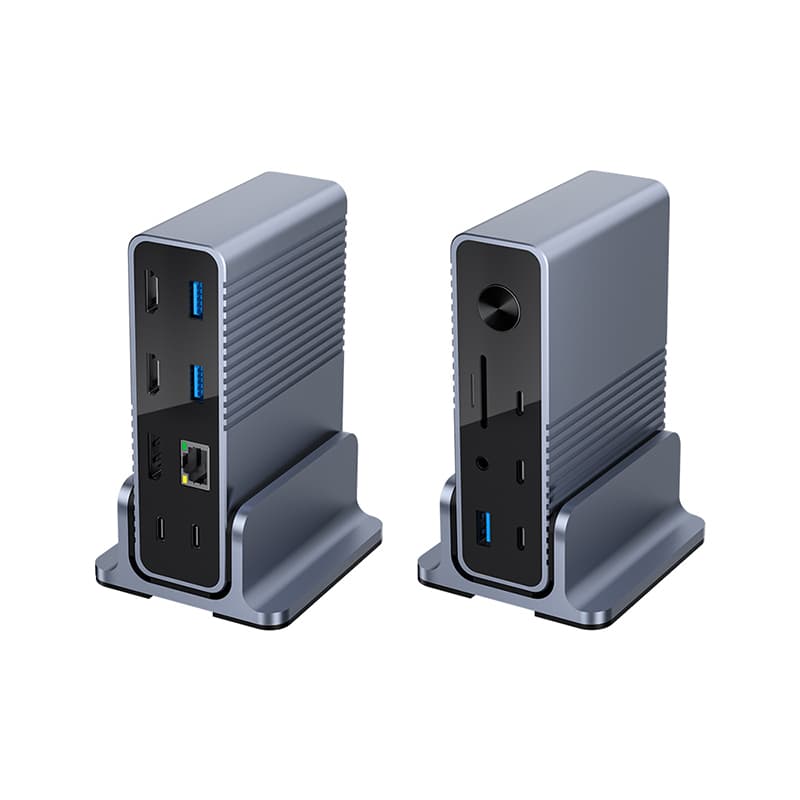
Additional connections include:
Best suited to: Windows office workstations that need two monitors, wired networking and extensive peripheral connectivity.
Important limitations: macOS uses SST instead of Windows-style MST extension. The product page does not publish a complete simultaneous-resolution matrix, so its individual 4K output ratings should not be interpreted as a guarantee that every video port can operate at its maximum at the same time.
The DS015 also uses conventional USB-C bandwidth rather than Thunderbolt-class bandwidth.
The DS019B is aimed at Thunderbolt 5 computers that need more bandwidth than a conventional USB-C dock can provide.
Displays connect through its downstream Thunderbolt 5 ports. The dock also provides USB connections, 2.5G Ethernet, card readers, audio and up to 140W host charging.
Thunderbolt 5 provides 80Gbps of bidirectional bandwidth and can increase transmit bandwidth to 120Gbps in Bandwidth Boost mode.
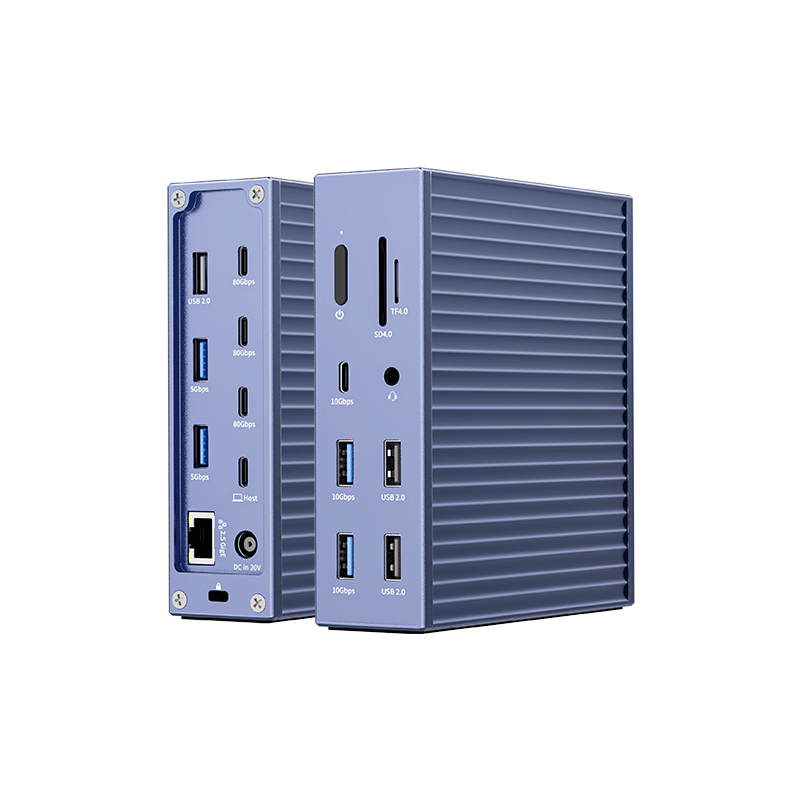
On compatible hardware, the published display configurations include:
Best suited to: Thunderbolt 5 workstations handling high-resolution displays, fast storage and several high-bandwidth peripherals.
Important limitations: these display combinations depend on the laptop GPU, operating system and Thunderbolt implementation. They are not guaranteed on every computer that can physically connect to the dock.
Monitors may also require suitable USB-C video cables or adapters. For an ordinary dual-1080p or dual-1440p office desk, this level of bandwidth and power is usually unnecessary.
The TB9001 combines two Mini DisplayPort outputs, one downstream Thunderbolt 5 connection and an internal M.2 NVMe slot.
Its main advantage is not simply the number of displays. It allows monitor expansion and local high-speed storage to share one desktop device.
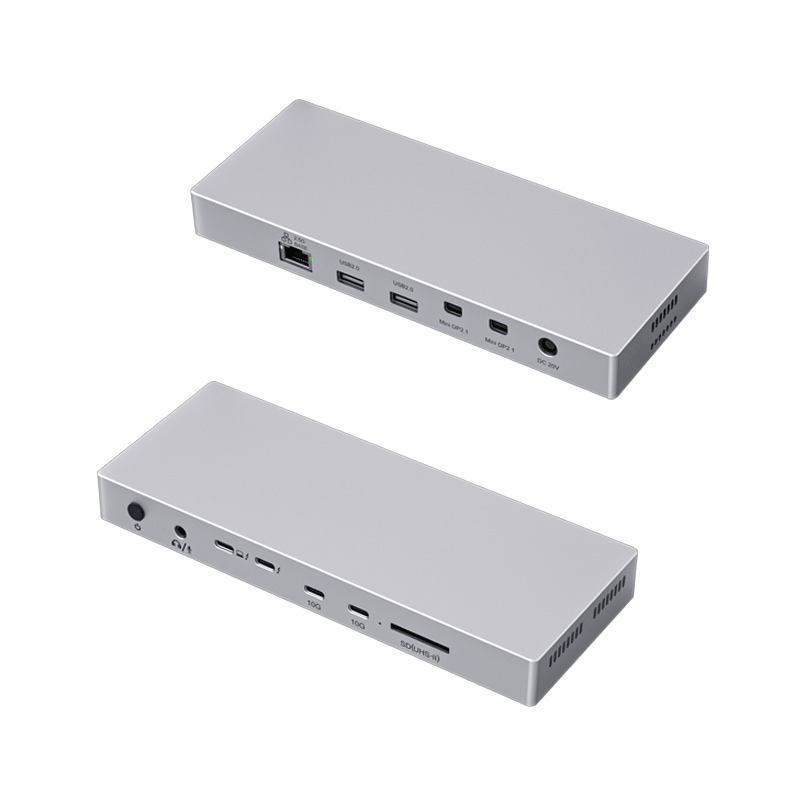
Other connections include:
Each video output is individually rated for up to 8K at 60Hz.
Best suited to: Thunderbolt 5 users who need Mini DisplayPort connections and integrated NVMe storage.
Important limitations: the individual 8K rating should not be interpreted as a guarantee that all three outputs can operate at 8K simultaneously.
The actual simultaneous display configuration depends on the host GPU, available bandwidth and operating system. The TB9001 also offers little practical advantage for a basic two-monitor office setup that does not need NVMe storage.
For a Mac requiring two independent external screens, first check the Mac model’s native display limit. A conventional MST-based USB-C dock cannot automatically overcome that restriction.
On a compatible Windows laptop, an MST-capable dock can present two external monitors as independent workspaces.
After connecting both monitors, open:
Settings > System > Display > Multiple displays > Extend these displays
If the second monitor is not detected, check the host’s video support, reconnect the cables, power the dock if required and select Detect in Windows display settings.
The number of native external displays depends on the exact Mac model and processor.
Standard MST-based USB-C docks normally operate in SST on macOS. Two monitors connected to the dock may therefore show the same external image.
Thunderbolt and DisplayLink use different display methods, but neither should be treated as universally compatible with every Mac. Check Apple’s current external-display guidance and the technical specifications for the exact model.
No. Two physical video outputs only confirm that two monitors can be connected.
Independent extension also depends on the host port, GPU, operating system and the docking station’s display technology. Some USB-C docks extend two monitors on Windows through MST but mirror them on macOS.
No. The USB-C port must support DisplayPort Alt Mode, USB4 video or Thunderbolt.
A data-only USB-C port cannot provide native monitor output through a standard USB-C dock.
The correct model depends on the host connection and operating system.
For a compatible Windows DP 1.4 laptop with two HDMI monitors, HBC077 provides a compact dual 4K option. Users needing Ethernet and more peripheral ports may prefer DS015, but its simultaneous output combination should be confirmed.
Thunderbolt 5 models are more suitable when the workstation genuinely needs additional bandwidth.
It may connect, but two independent external desktops are not guaranteed.
The result depends on the MacBook model, processor and dock architecture. Standard MST-based USB-C docks commonly mirror the two external outputs on macOS.
Neither is universally better.
Choose the connection supported by the monitors at the required resolution and refresh rate. Dual HDMI is convenient for mainstream office displays, while DisplayPort may be preferable for certain professional or higher-refresh monitors.
Native DisplayPort Alt Mode and Thunderbolt docks are normally plug-and-play on compatible systems.
DisplayLink docks require DisplayLink software. Graphics, Thunderbolt and docking-station firmware should still be kept current.
No single docking station is best for every dual-monitor setup.
Start by identifying the laptop’s host protocol and native display limit. Then compare operating-system behavior, monitor inputs, simultaneous resolution, charging and peripheral requirements.
A simple dual-HDMI USB-C dock is often enough for a Windows office setup. A port-rich desktop model is more appropriate when Ethernet and many accessories are required. Thunderbolt 5 becomes useful only when the computer and workload can take advantage of its additional bandwidth.
If compatibility is uncertain, provide the laptop model, operating system, monitor connections and required resolution before choosing a dock.









